

Village App
App Features
The Village At Breckenridge uses a smart phone app for access control and other property features. From our App, you can do the following:
- Open the door to your condominium
- Access the health club / leisure center
- Access elevators
- Access the parking garage (if included in your reservation)
- Open the front door of buildings
- Check out pool towels
- Reserve day use lockers
- Reserve the Movie and Game rooms
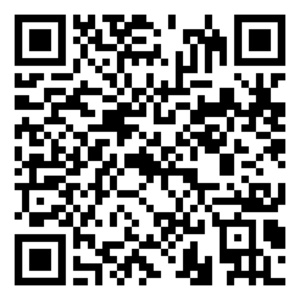
We recommend you download and install the app on the phones of all adult members of your party prior to arriving. You can set up the App up to 48 hours prior to your arrival. You can scan the below QR code from your phone or search for “Village at Breckenridge” in the Apple App Store or Google Play Store.
Android App

iPhone App
We highly recommend enabling an unlock code on your phone to ensure not only is your digital room key secured but also any other information that is on your phone.
App Help
App Help
Checking In
When you open the app the first time, you will be asked for your reservation id and the last name of the person who made the reservation. When you enter your reservation id and the last name, a verification code will be emailed or texted to the person who made the reservation.
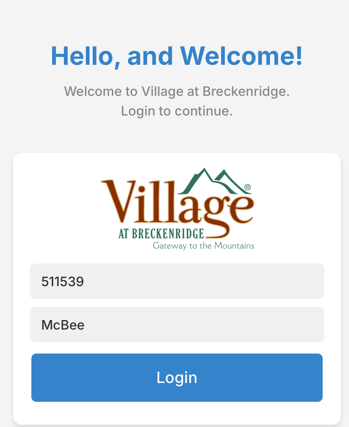
If you do not know your reservation id nor the name of the person who made the reservation, please contact the person or company from which you rented.
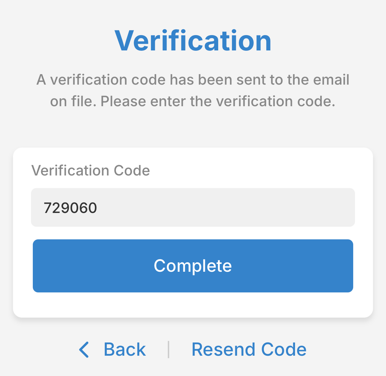
Once you enter your reservation id and last name, click Login. You will be prompted for a verification code. The code will be sent via text message and / or email to the address on file for the reservation. When you enter the code, click Complete.
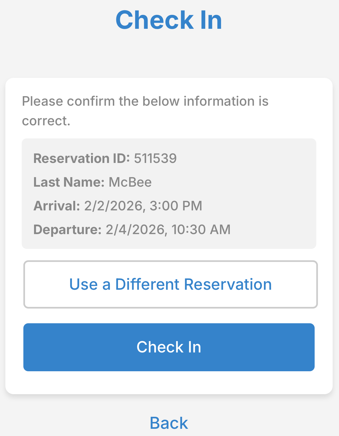
You will be asked to verify the reservation information and then click the Check-In button. You should receive a Check-In Successful notification. Click Next.
Your digital key will allow you in the garage, common areas, health club, leisure center, and locker rooms at the time specified by your rental manager. Once your reservation time begins (usually 3PM or 4PM), you will be able to access your rental unit.
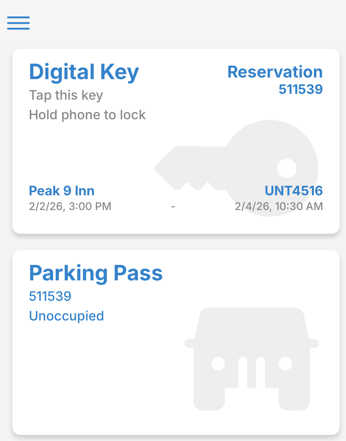
If you have reserved parking, there will also be a parking pass. Only one vehicle in the parking garage per pass. Due to extreme limitations on parking availability this is strictly enforced.
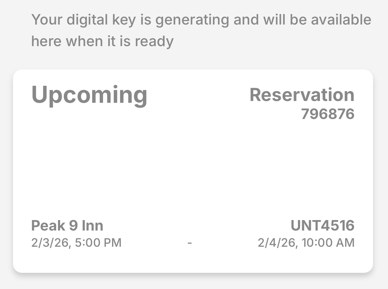
You can check in to the app up to 48 hours prior to your reservation time. We recommend you do this to make your arrival more efficient. Note that until the day of your arrival, your parking pass will not appear and the digital key will say “Upcoming” rather than Digital Key.
App Help
Sharing Digital Keys
Depending on the size of your rental condo and the number of guests specified in your reservation, your manager will configure the reservation for a specific number of digital keys. To share the digital key with other members of your party, they must first download the App.
Provide them the reservation id and the last name of the reservation; they should input this in to the app just as you did when you initially checked in.
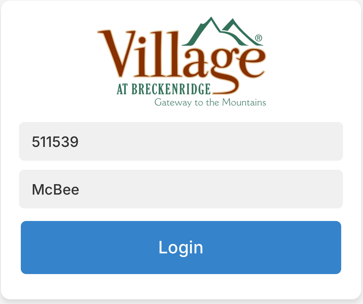
You will be sent a verification code that you must provide to the person configuring the app. Once they have this, they can access the digital keys in the same way that you did.
App Help
Opening Doors
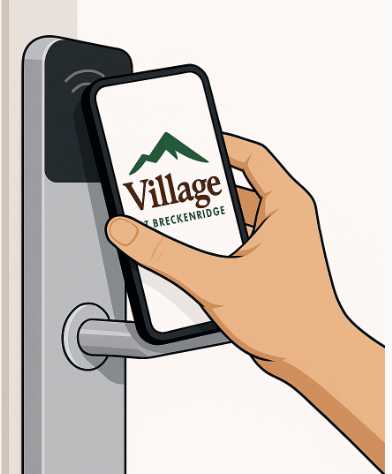
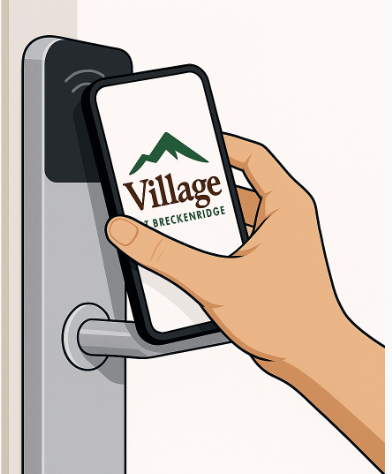
To open any door, simply click the Digital Key. A short animation will appear while the phone is transmitting your digital key to the lock. Hold the back of the phone flat against the lock.
Leisure Center, Fitness Center, elevator, and front door key scanners are more powerful and do not require that the key be directly against the lock. However condo doors are battery powered and thus use a lower powered key scanner. The phone must be placed with the back of the phone flat against the lock for the best results.
[Insert res id screen in above image and delete this text block]
App Help
Troubleshooting
There are a few things you can do to make sure the app works correctly each and every time.
Set up the App Prior to Arrival
Don’t wait until you are sitting at the garage door. Download and set up the app prior to leaving home. You can set up the app 48 hours prior to your check in time.
Hold Back of Phone Flat Against Door Lock Reader
To unlock a door, the lock reads the signal from the phone best if the back of the phone is flat against the lock. You can ignore the Apple Pay screen if it pops up. You are NOT being charged anything.
Enable Bluetooth
Make sure that Bluetooth is enabled on your phone. It must be enabled for the app to work properly each and every time you use the app.
Keep Your Phone Updated
Make sure that your phone is updated with the latest updates from Apple or Android. It is also a good idea to keep your apps updated with newer versions. Most phones do this automatically unless you have turned it off.
Checking In Too Early
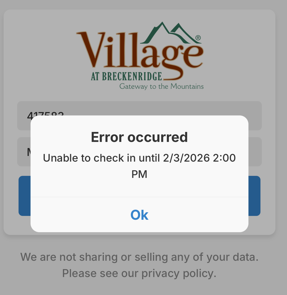
If you receive a message telling you that you cannot check in until a certain time, this usually means that you are checking in more than 48 hours in advance of your reservation.
International Visitors
Make sure that your App is working prior to leaving home. If you want to avoid international text charges, when you check in to the app or provide your information to your rental manager, make sure they use your email address instead of your phone number.
If you wish to avoid international data charges, ask your rental manager for WiFi access so that you can configure your phone as you arrive at your condo. All condominiums have unique WiFi names and passwords. There are also free WiFi common areas such as the lobby and health club / leisure center.
App Help
Reserving Amenities
You can use the phone app to reserve day use lockers starting at 8AM on the day or your reservation. You must have all belongings removed from your locker by 8PM at the end of the day.
You can also use the phone app to reserve the Movie and Game rooms. You can reserve the Movie and Game rooms any time during the room reservation period. For example, if your room is available at 3:30PM on Thurdays through 11:00AM on Monday, you can reserve the movie room any time during that window. You cannot reserve the room prior to your arrival.
To reserve an amenity, locate the “Reserve Amenities” button on the main App screen and click it. Click the Reserve Amenity button. Click the “Add Reservation button. Select the amenity you want to reserve, the date, and the time range (in 30 minute increments) that you want to reserve.
Review your reservation request and then click Complete.
You are not able to access the amenity prior to the start of the reservation. If you do not arrive within 15 minutes after the start time of your reservation, your reservation will be canceled.
On the Amenity Reservations screen, you can click the trashcan icon next to a reservation if you wish to cancel a reservation.
App Help
Checking out Pool Towels
The Village at Breckenridge uses the App to request pool towels. Each towel has a tiny RFID tracker embedded in it.
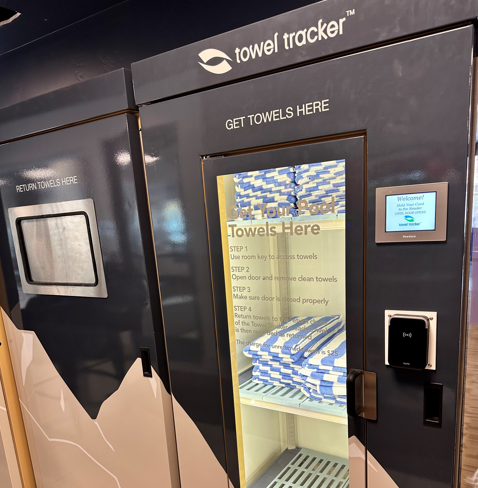
To check out one or more towels, press the Digital Key on the app and hold the phone flat against the key reader. The Towel Tracker door will now open. Towels removed are recorded against your reservation id.
When you have finished enjoying our leisure center, pool, and hot tubs, please return all pool towels into the bin marked “Return Towels Here”. You can return towels to either machine. The Towel Tracker machine will record that you have returned the towels you checked out (no need to swipe to return towels.) Please do not take towels to your room as they may not get returned. Lost towels will incur a $25 charge.